How CricKids works
This page walks you through the CricKids journey - from opening the app for the first time, creating a team, adding players, scoring a match, and generating a polished PDF scoresheet at the final whistle.
How it works
From kickoff to final whistle — simple, step by step.
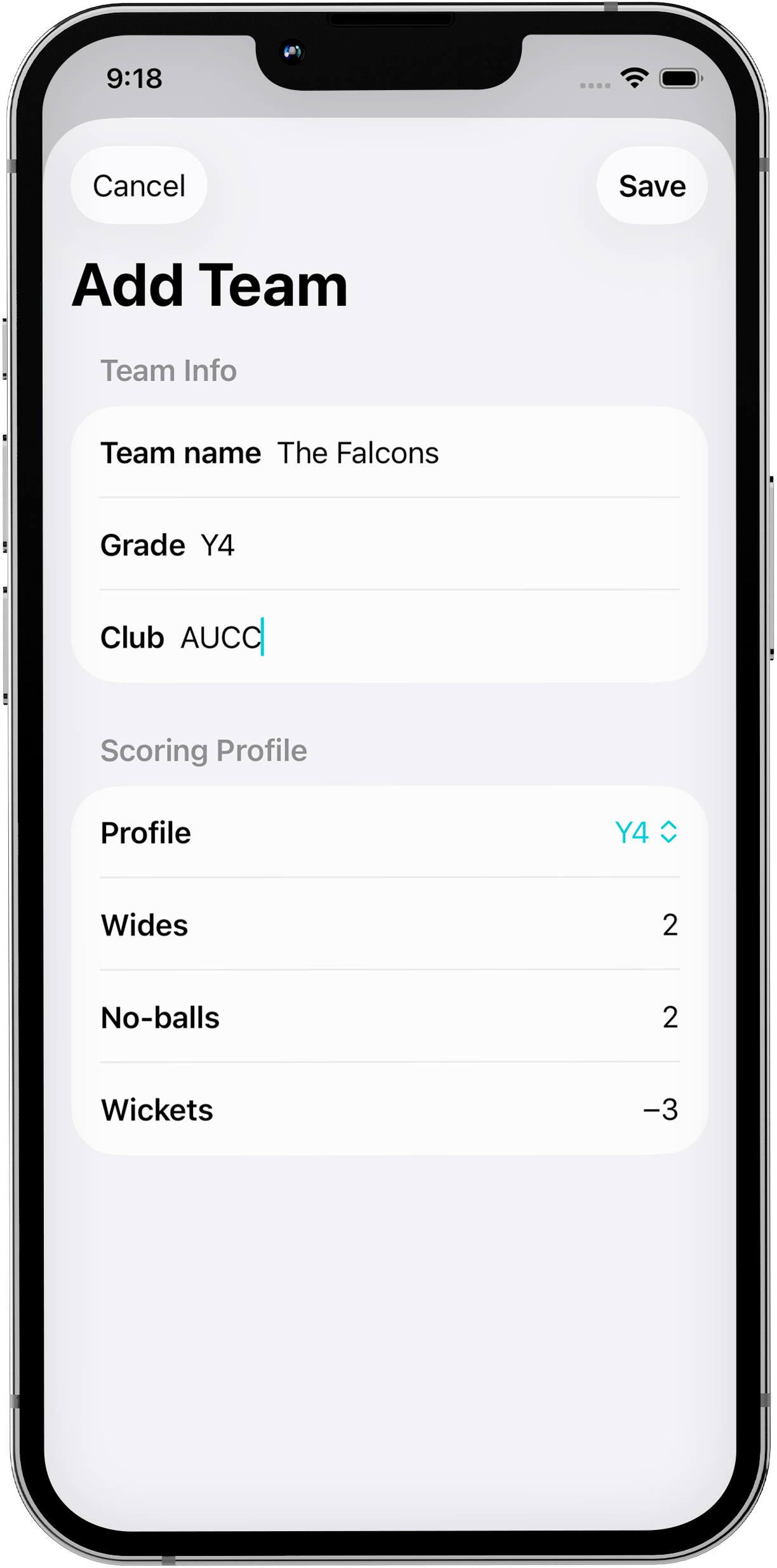
Step 1. Add Your Team
Set up teams, players and match format in seconds.
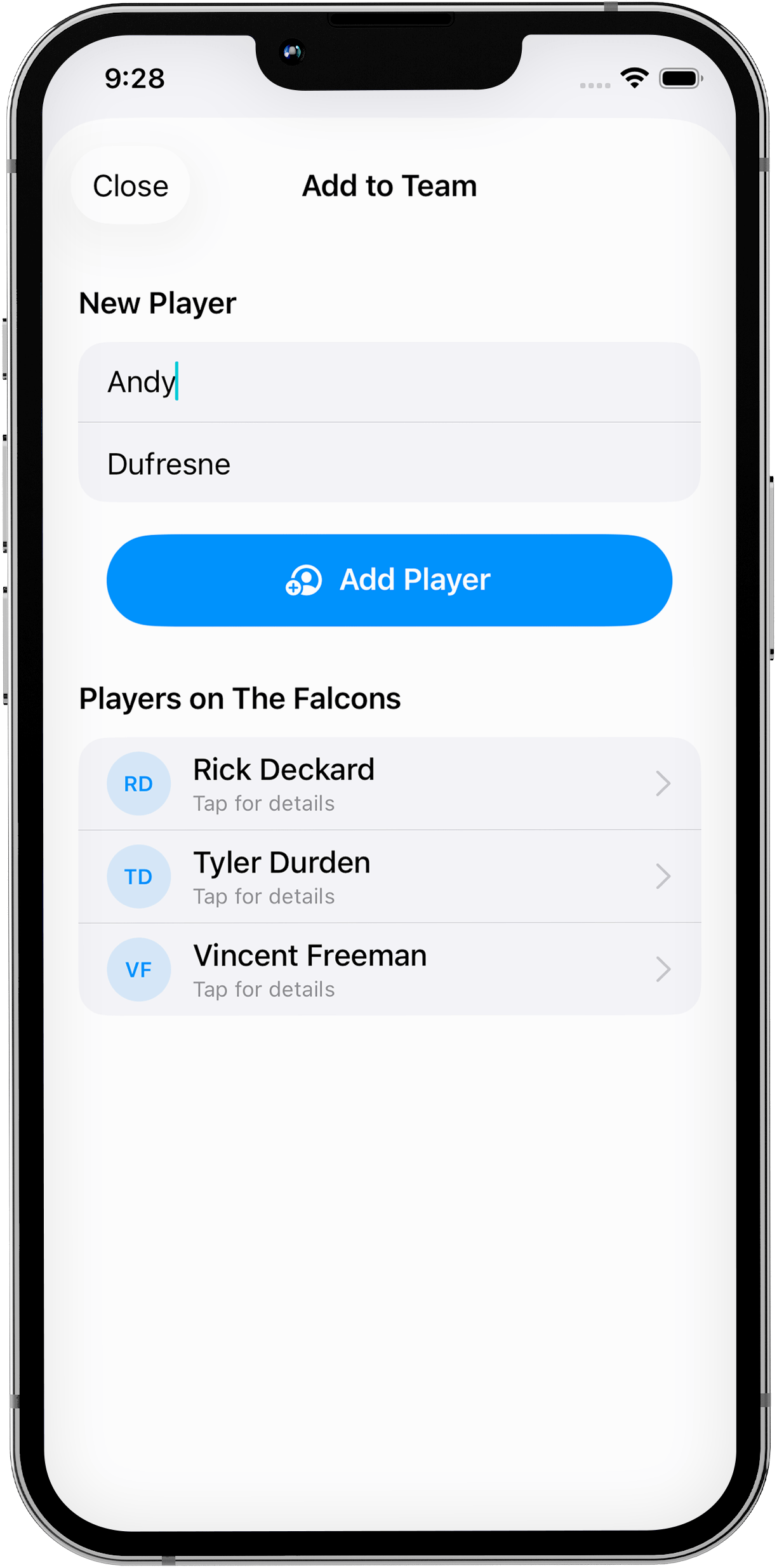
2. Add Your Players
Set up teams, players and match format in seconds.
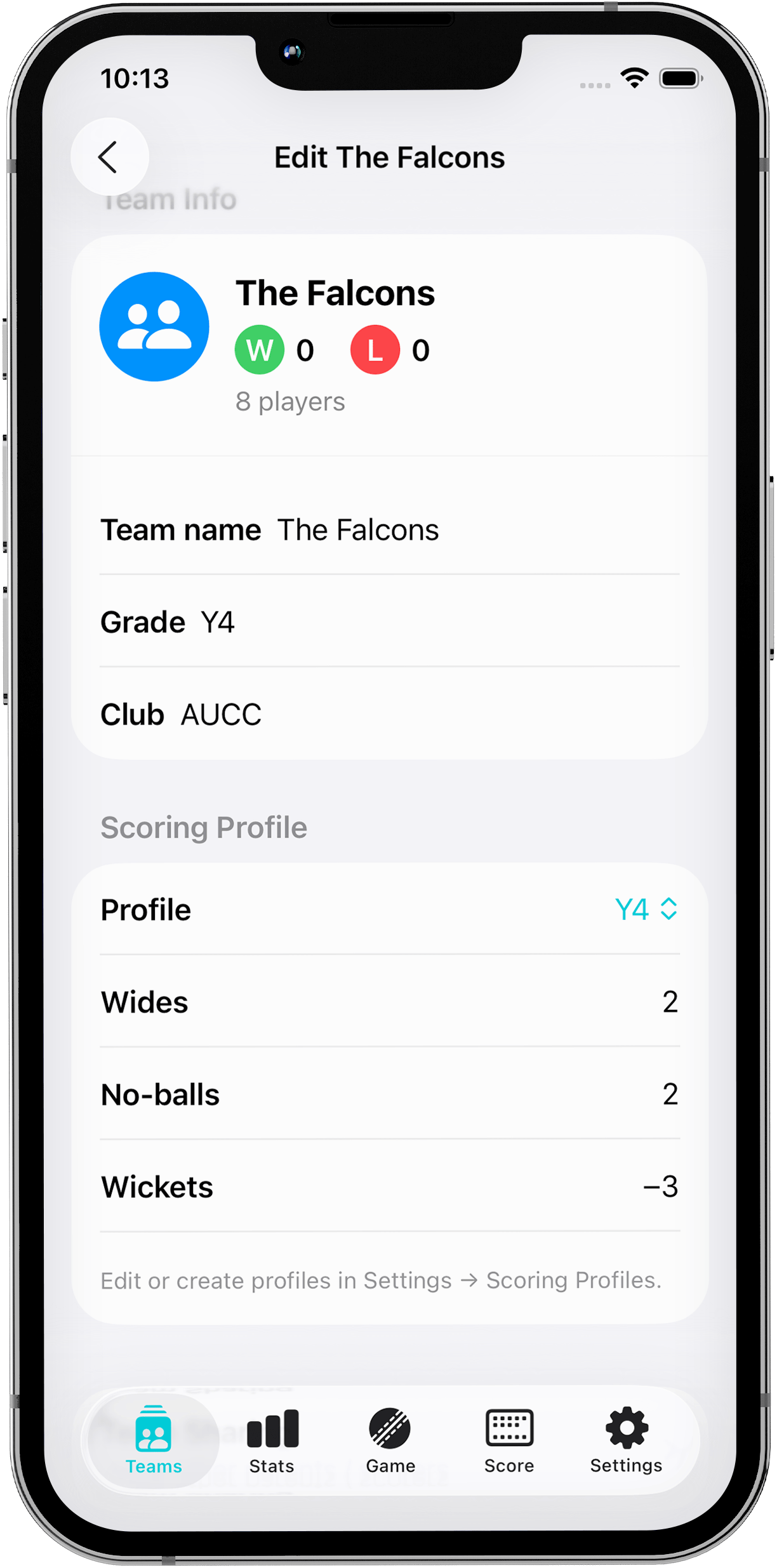
3. Set Scoring Profile
Choose your scoring profile (the points awarded for each ball-type). Or, create your own custom scoring profile from the Settings screen.
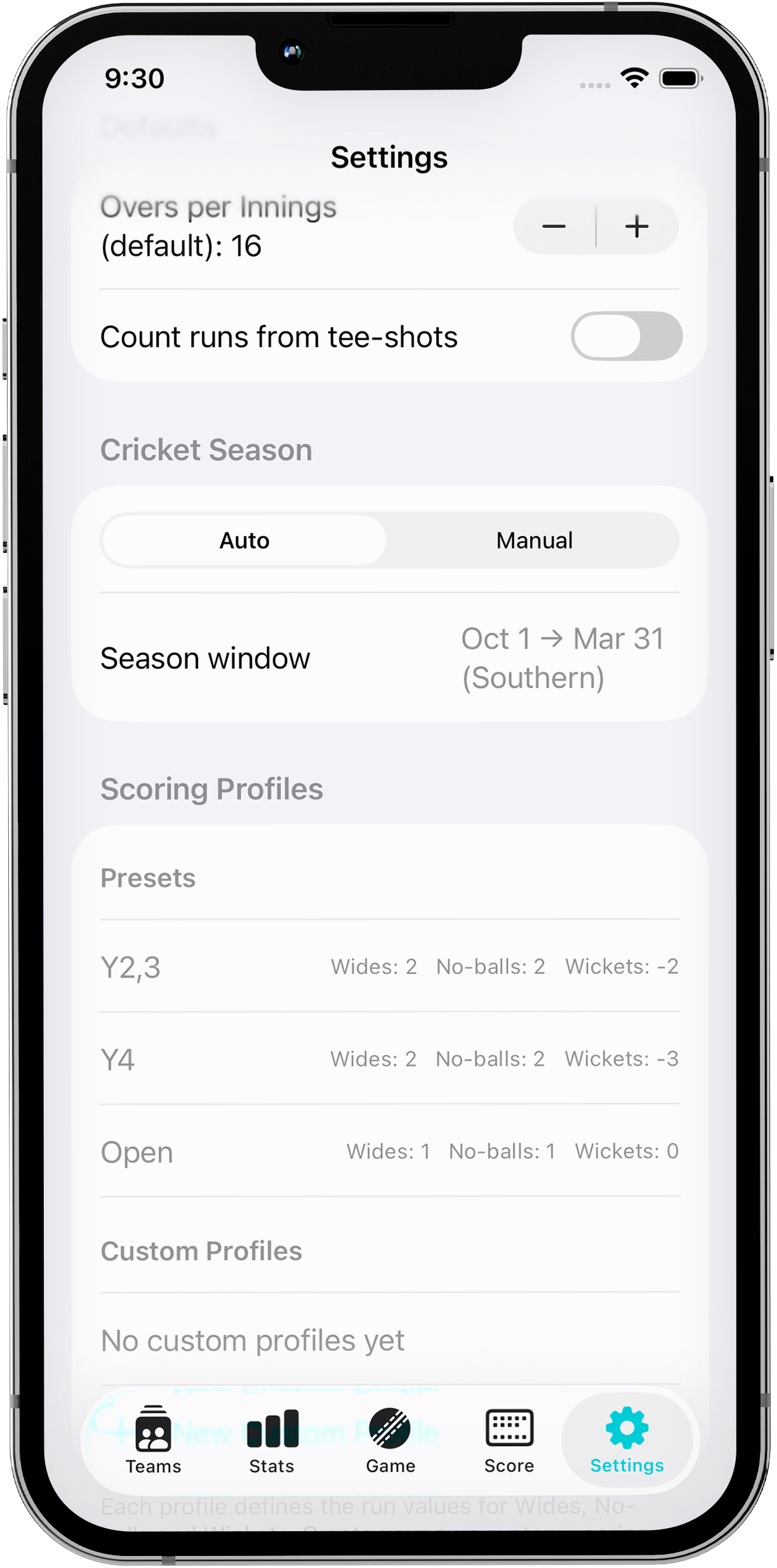
4. Tweak Settings
Use the Settings screen to adjust default over number, scoring profiles (whether tee-shots count towards the game score), and other preferences.
5. Start A Match
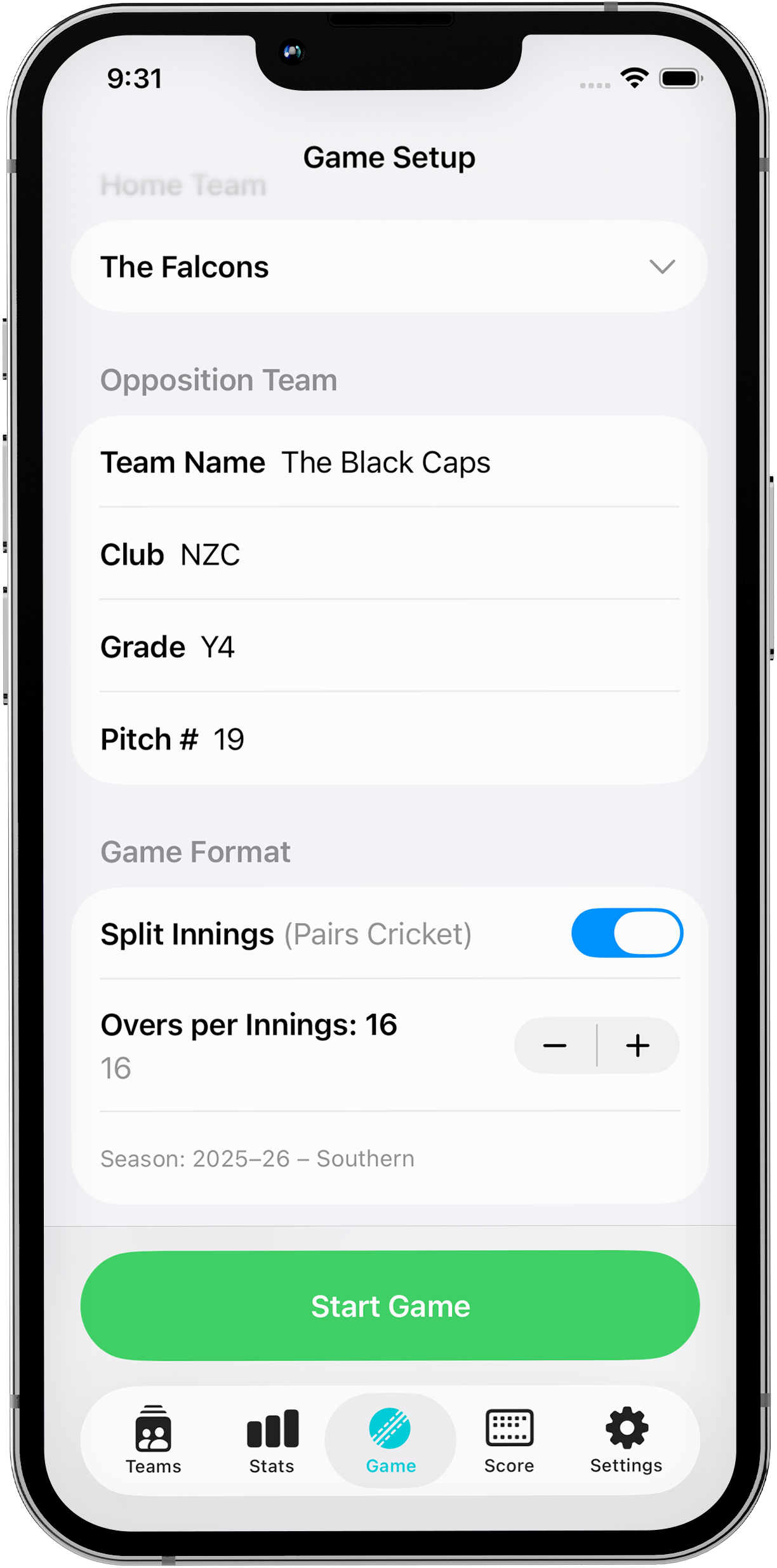
To score a new game, go to the Game tab - select the team you want to score, enter the opponent's details, confirm your game format and scoring profile and click 'Start Game'.
6. Who Won the Toss?
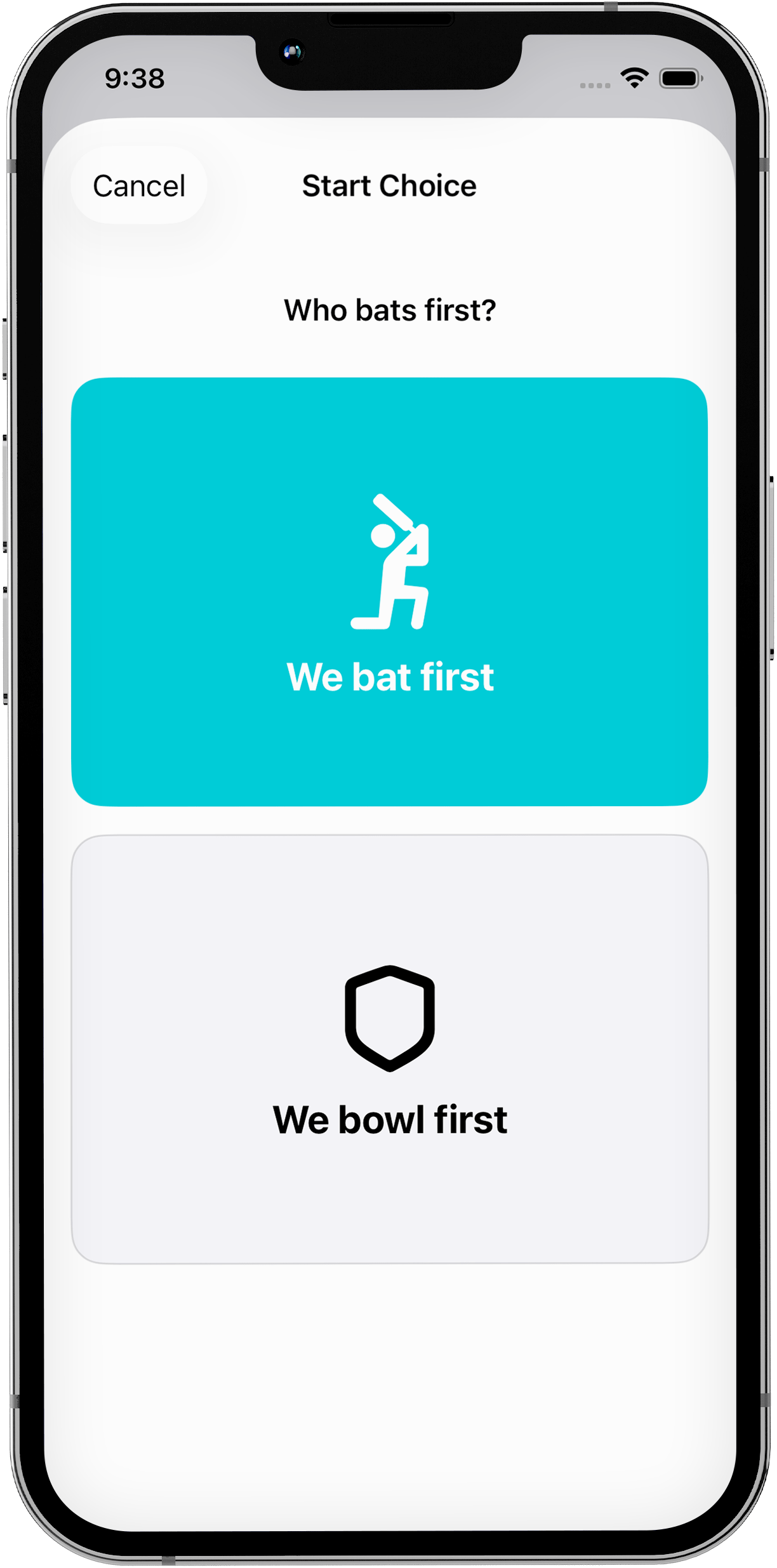
When prompted, select whether your team will bat or bowl first.
7. Choose Your Openers
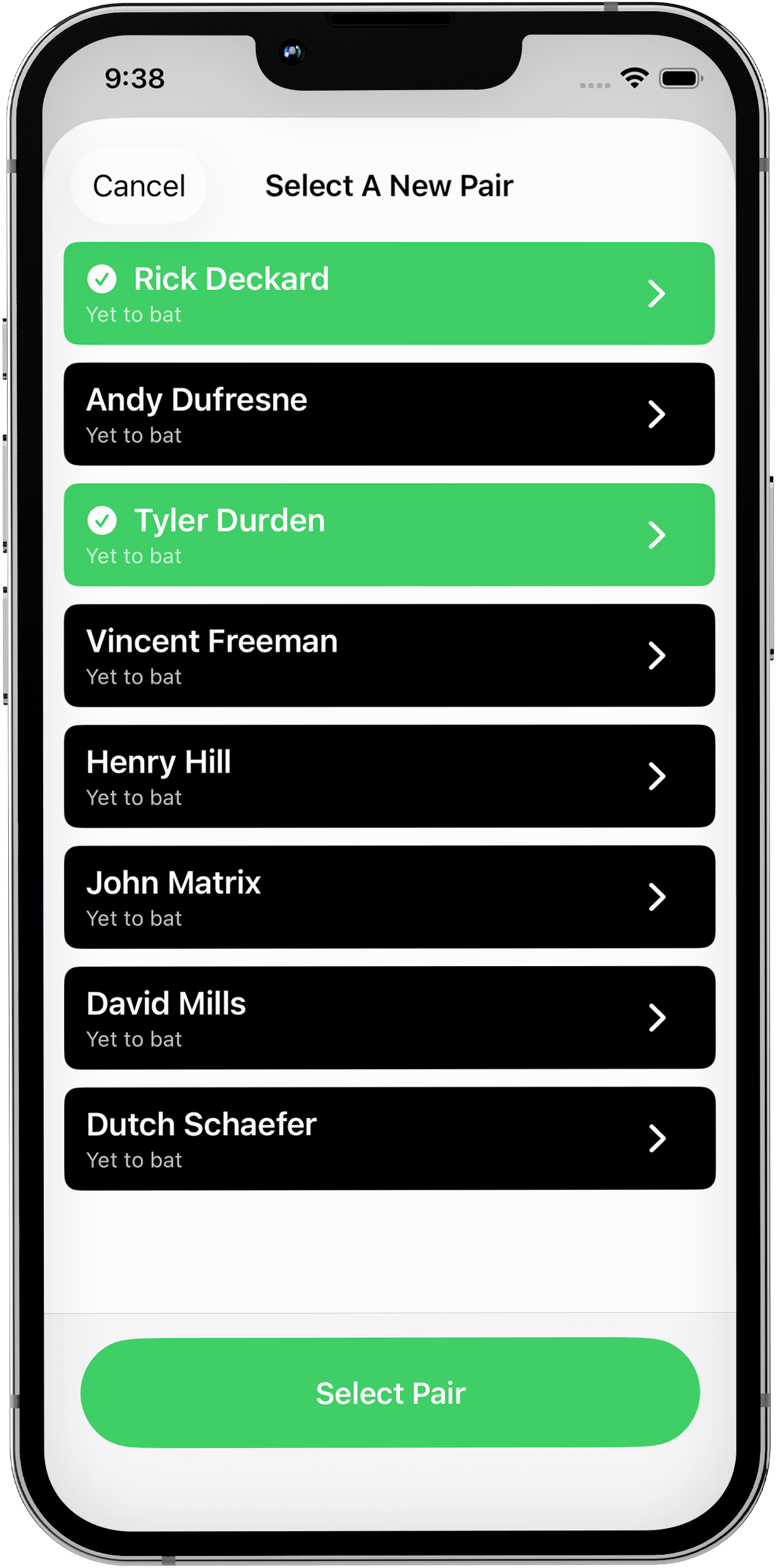
Select your opening batters or bowler
8. Score the match
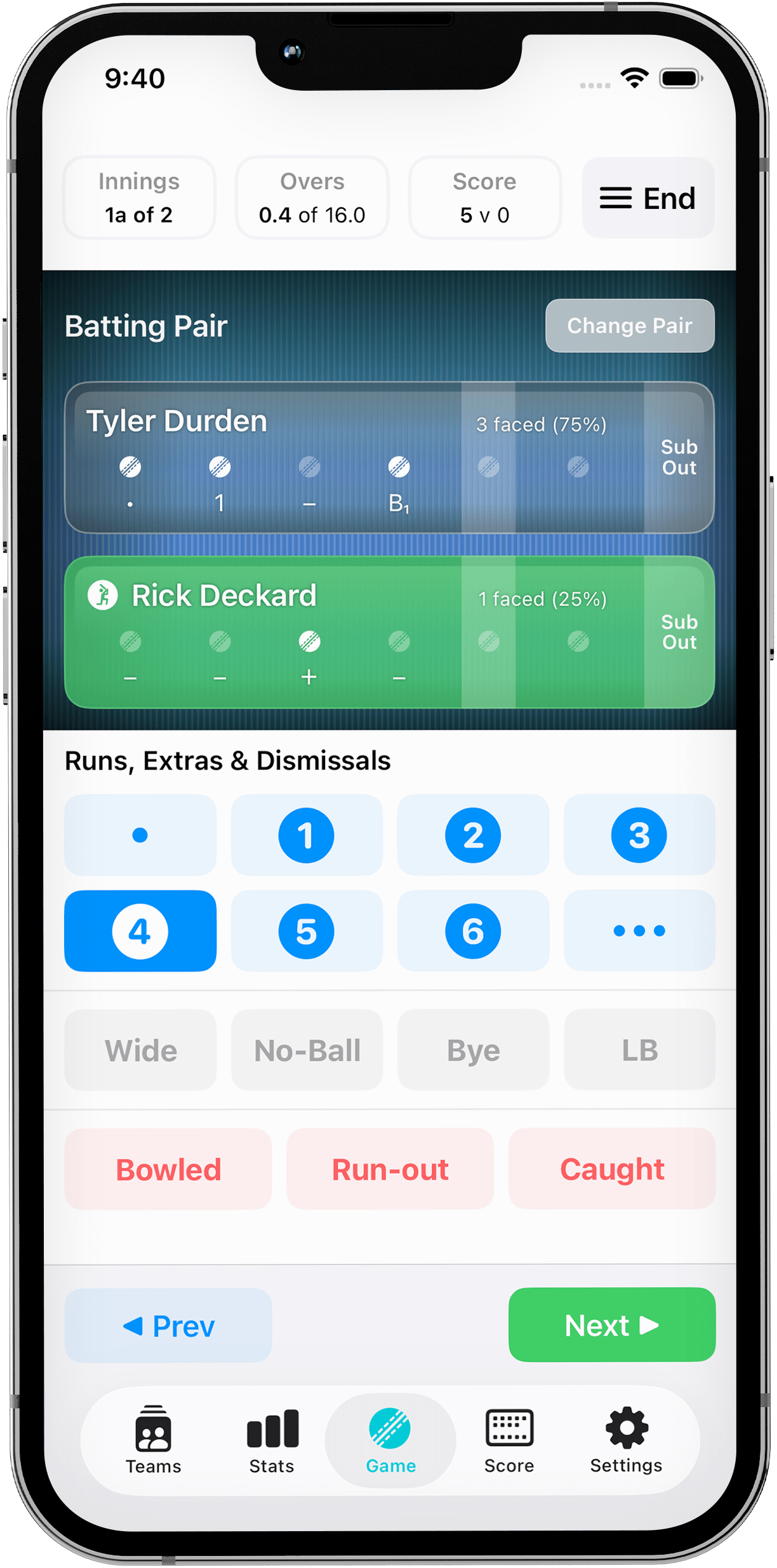
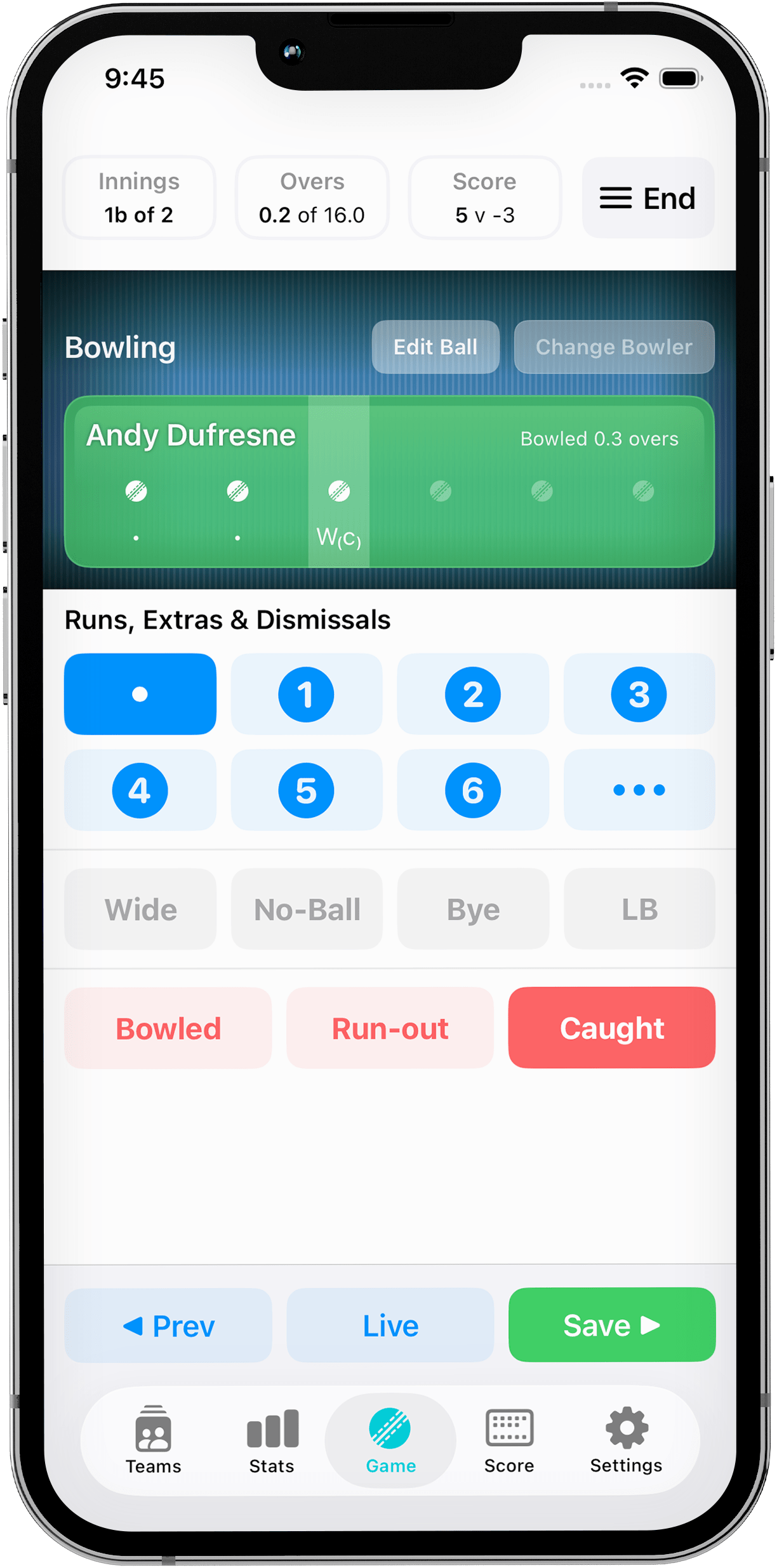
Enter the score for each ball, and the app will automatically calculate the game statistics. When batting, change the player facing the ball by clicking their 'Player Tile' - the active player facing the bowler will light up green and display a 'batter' icon next to their name.
9. Fix Mistakes
Use the 'Prev' and 'Next' buttons to go backwards and forwards in the ball history and click the 'Edit Ball' button to correct any errors. Click the green 'Save' button to confirm your changes.
10. View the Game Stats
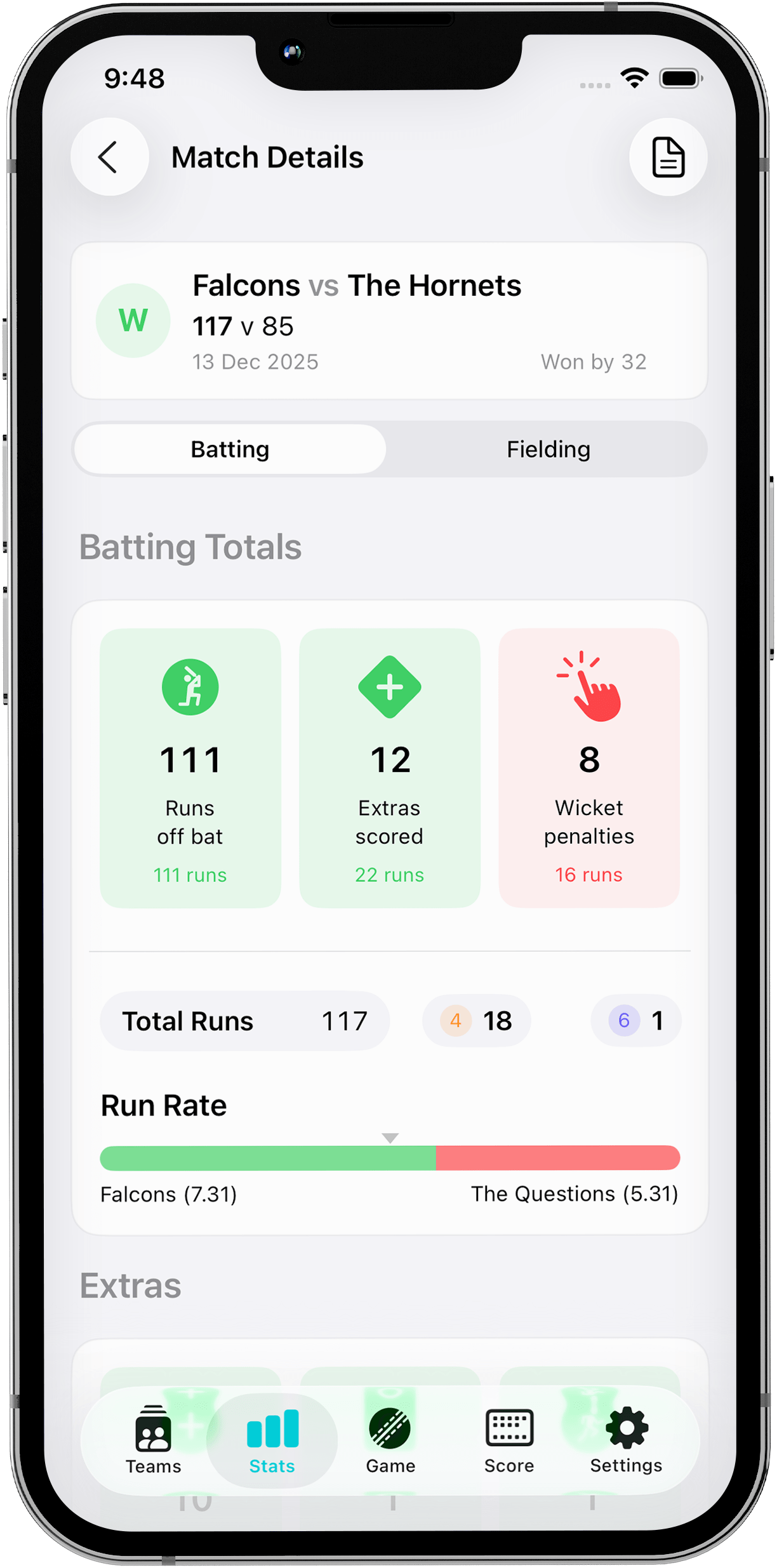
At the completion of the game, view the Match Details from the 'Stats' tab (Stats >
Season Stats > Choose Your Team Name > Choose the Game)
Click
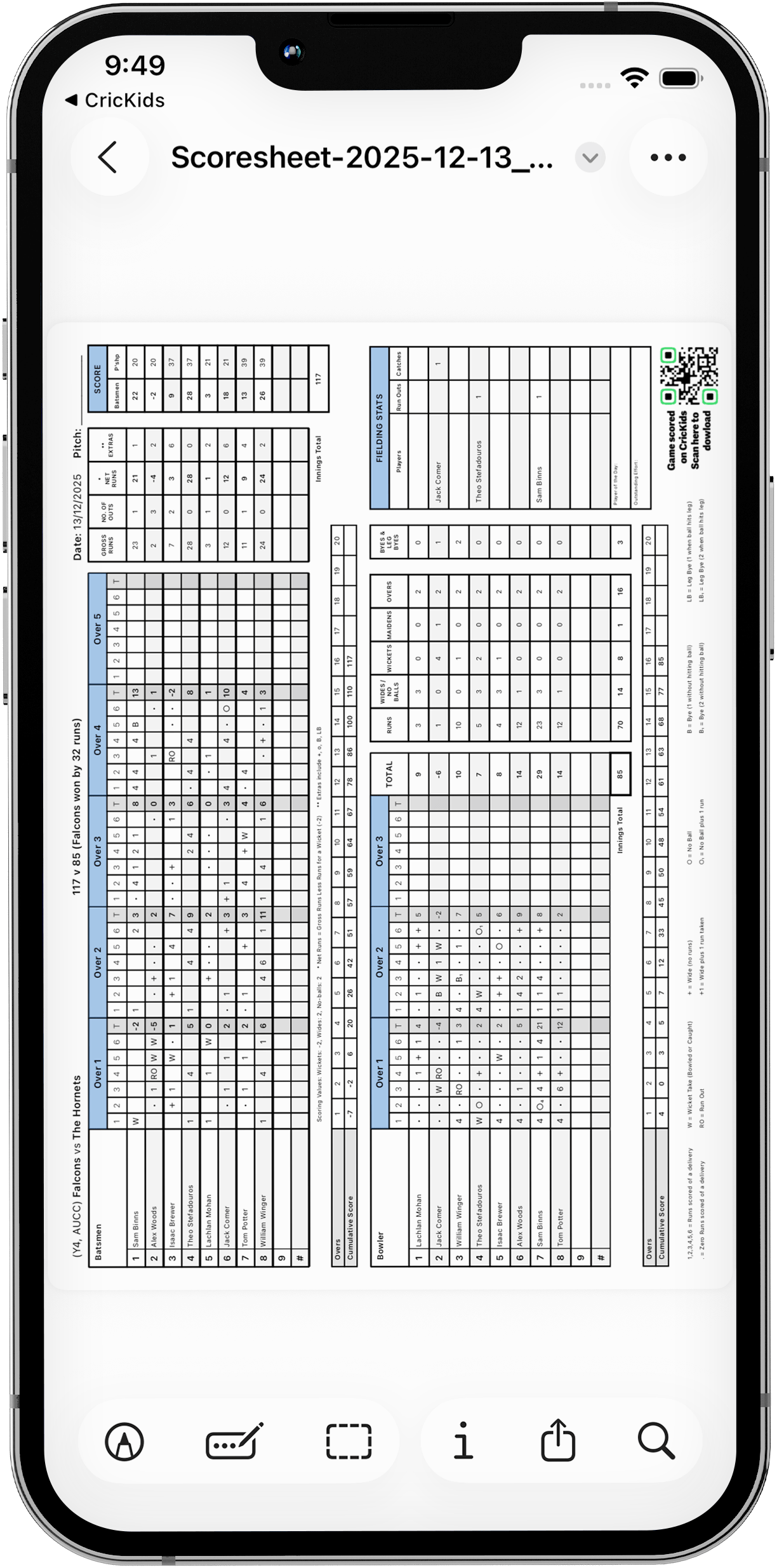
the 'document' icon in the top-right of the screen to generate your PDF scoresheet.
11. Share The Scoresheet
You can then share the PDF scoresheet with your team, coaches, or parents.